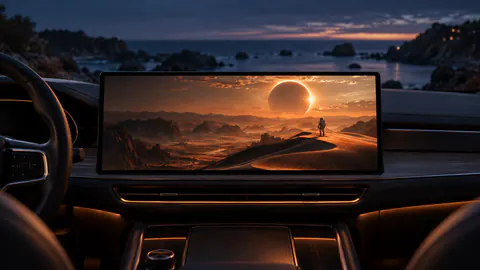
LET THE PICTURE LOOK RIGHT
CarPlay video. Full frame. The right kind of fit.
Black bars usually mean the video and display have different proportions. Keep the original frame to show the whole image, or use a supported fill control when you prefer a crop. Dashow includes fit/fill for player video. Screen-shared apps keep their own presentation, and imported subtitle overlays currently appear on the iPhone only.
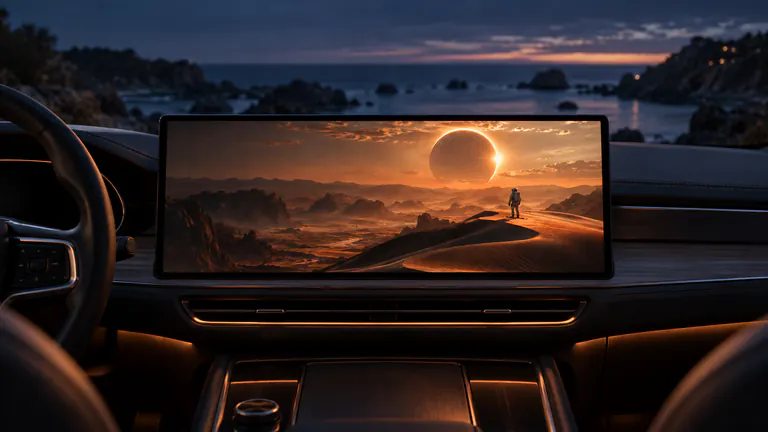
- 01
Fit keeps the full image; fill can crop its edges.
- 02
Portrait videos naturally leave space on a wider display.
- 03
Check captions on the actual output route, not just on the phone.
How it works
Your quick start
- 01
Check the original shape
Identify a landscape movie, wide cinematic frame or portrait clip.
- 02
Choose your framing
Use the available player fit/fill control or the source app’s supported full-screen view.
- 03
Check the important details
Make sure faces, captions and on-screen text remain visible on the selected display.
Black bars can be the correct picture.
A car display can have different proportions from an iPhone, a portrait video or a cinematic movie. Showing the whole image while preserving its shape leaves unused space where the frame does not match. That space is not necessarily a connection failure or evidence that the video is low quality.
A vertical Reel on a wide screen may have room at the sides. A very wide film may have room above and below. Start by checking whether the complete picture looks natural. If people and objects look stretched, filling every pixel has come at the expense of the original proportions.
Choose between the whole frame and a closer crop.
Dashow’s player includes fit/fill controls. Fitting is the useful choice when you want the entire image, including details at the edges. Filling can make the picture occupy more of the available area by cropping. The exact result depends on the source and the display, so check a recognizable scene after changing it.
For a sports broadcast, subtitles or a video with text near the edge, a crop can hide information you care about. For another film, you may prefer the closer view. Neither setting creates details that were absent from the source. Choose the picture that serves the video instead of using black bars alone as the definition of a problem.
A shared app controls much of its own presentation.
When you use Cast to Car, the phone’s permitted screen content is what you share. A source app may provide a full-screen player, allow rotation or keep a portrait layout. Prepare the view in that app and use the options it actually offers. The car display does not turn every app into a new landscape interface.
For YouTube or browser video, open the intended player view before settling into the watch. For TikTok and Instagram, portrait framing can be part of the original composition. Keep faces and text visible rather than stretching a vertical clip to fit the width of the receiving screen.
Check captions where the video will actually play.
A video can carry text in different ways. Captions may already be part of the picture, be provided by the source app or come from a subtitle track or imported file in the player. Seeing text on the iPhone does not establish that every external output will render it the same way.
Dashow supports subtitle controls and SRT/WebVTT imports on the phone, but imported subtitle overlays currently appear on the iPhone only. Test the actual display route if captions are essential to the watch. Also check whether a fill crop hides text already present in the video. A full-frame view is often the clearer choice for a shared screen.