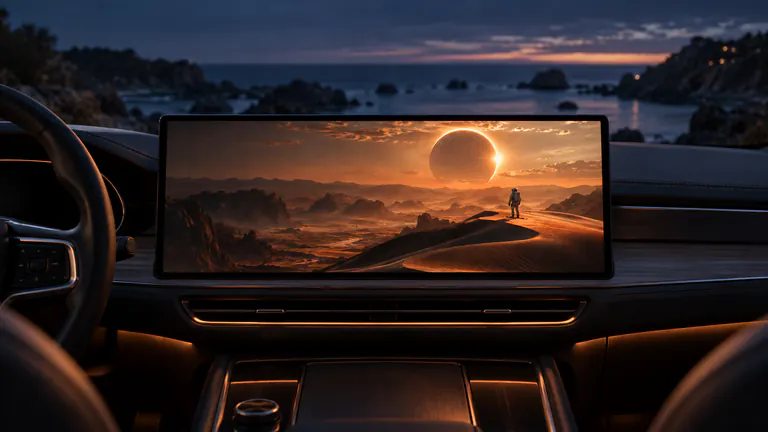
SMALL PHONE. BIG PICTURE.
Cast your iPhone apps to CarPlay.
CarPlay screen mirroring shares your iPhone’s visible content with a compatible car display. In Dashow, open Cast to Car, choose the car under Display, start the system screen-sharing session, and open your chosen app. Content appears when the app allows capture and the receiver supports the output.


- 01
Open YouTube, TikTok, Instagram, Safari, or another app after starting Cast to Car.
- 02
Keep control on your iPhone; the car display shows the shared picture.
- 03
Test a personal video first to separate display setup from an individual app’s restrictions.
How it works
Your quick start
- 01
Connect and park
Connect your iPhone to CarPlay and open Dashow when you are parked.
- 02
Choose the screen
Open Cast to Car and select the car under Display.
- 03
Start sharing
Use the system broadcast control, then open the app you want to show.
- 04
Check the picture
Confirm visible content and sound before settling into the video. End the broadcast when finished.
Bring the app you are already using.
Sometimes the thing you want to watch is not a file in a movie library. It is a creator’s new video, a clip a friend sent, or a page you opened while planning tomorrow. Screen sharing is useful because you can keep that context on your iPhone and bring the visible content to another display.
Think of the phone as your controls. You select the video, scroll the page, or pause the source app there. This workflow does not install those apps on the car or automatically turn the car’s touchscreen into an iPhone remote.
Choose the display before opening the app.
Start in Dashow’s Cast to Car panel with your car parked and the iPhone connected. Choose the car under Display. Then start the system screen-sharing session and switch to the app you want to show. This sequence keeps the destination clear before the picture begins to leave your phone.
For a first check, show a short personal video that permits capture. Confirm the picture appears, move within that video, and check sound. Then open YouTube, TikTok, or another app. You now have a working reference if a particular source behaves differently.
Prepare the moment, then share it.
Find the clip or page before starting. A saved item is easier to reach than a fresh search, especially when you only have a few minutes. Finish sign-ins first, close anything private, and consider a Focus mode: screen sharing can include the things that appear on your phone.
For landscape video, use full screen and rotate the phone if the source app supports it. Keep vertical video in its natural shape. Space at the sides of a wide dashboard screen is preferable to stretching faces or trimming important captions.
Pick a route for the way you watch.
YouTube suits a longer creator video or a few minutes of a documentary. TikTok and Instagram suit a specific clip you want to share. Safari is useful for web video and pages. Each has its own guide with preparation tips, picture checks, and a clear distinction between app casting and direct file playback.
If your goal is a complete movie that you own, playing it directly in Dashow offers a focused library and saved progress. Casting is the natural choice when the app itself is part of what you want on the screen.
When an app shows a black video.
Compare it with your personal-video test. If menus appear but a particular movie remains black, that app or title may restrict capture. A screen-sharing app cannot grant permission that the source withholds. If nothing appears at all, return to Display, confirm the destination, and start a fresh sharing session after reconnecting.
Screen sharing or direct video playback?
| What you want to show | The useful route | How you control it |
|---|---|---|
| YouTube, TikTok, or another app | Cast to Car for permitted content | Keep using the source app on iPhone |
| A saved film or home video | Import into Dashow and play it | Use the Dashow video player |
| A Plex, Jellyfin, or Emby episode | Connect the library in Dashow | Browse seasons and resume progress |
| A direct online video file | Add a Video link | Play that file from your library |