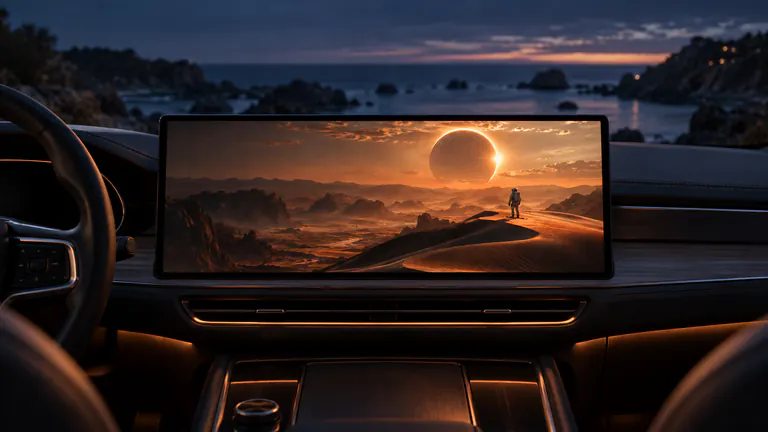
YOUR FAVORITE CHANNELS. A BIGGER VIEW.
YouTube on CarPlay. Give it the big-screen treatment.
Bring YouTube to a compatible car display with Dashow’s Cast to Car. Select your display, start screen sharing, then open YouTube on your iPhone. Pick a video, switch to landscape when it suits the picture, and control playback from your phone while you enjoy the bigger screen in park.


- 01
Prepare a video in YouTube first so your parked break begins with something you want to watch.
- 02
Start the display and broadcast in Dashow, then control YouTube on your iPhone.
- 03
Use full screen for landscape video and check the actual picture and sound on your receiver.
How it works
Your quick start
- 01
Find your video
Open YouTube, choose what you want to watch, and complete any sign-in before sharing.
- 02
Choose your car in Dashow
Connect while parked, open Cast to Car, and select the car under Display.
- 03
Start, then open YouTube
Begin the system screen-sharing session and switch back to your selected video.
- 04
Check and enjoy
Confirm the picture and sound, use YouTube’s playback controls, and end sharing when finished.
Start with the video you actually meant to watch.
A bigger screen is most useful when you already have something good in mind. Save the creator video you have been putting off, a travel film that suits a longer stop, or a short watch to share with the person beside you. Open it on iPhone before starting the display setup.
Finish signing in and find the point where you want to begin. For a charging break, choose something you can pause comfortably. For lunch, a single saved choice can keep the whole break from disappearing into recommendations.
Start with the screen, then return to YouTube.
With the car parked and your iPhone connected, open Dashow and go to Cast to Car. Choose the car under Display. Start the system screen-sharing session, then switch to YouTube and open the video you prepared. Keep the iPhone available as your playback controls.
For your first session, it helps to check a personal video in the same sharing flow before switching apps. That gives you a known picture to compare with if a particular YouTube title behaves differently on the receiver.
Let the video take the space it was made for.
Use YouTube’s full-screen view for a landscape video, and rotate the phone if the app supports that view. Check the actual display before settling in. The purpose is to give the picture room, not to fill every dashboard shape by cropping away the edges.
A vertical Short has a different shape from a widescreen film. Keep its intended proportions so faces, text, and captions remain intact. Control pause, the next video, and navigation from YouTube on the phone; mirroring does not establish touch control from the car.
Wide videos can fill more of your car display. Vertical clips keep their original proportions, with space at the sides.
Find the right fit for your screenKnow which Cast button your instructions refer to.
YouTube’s documented smart-TV casting flow looks for supported TV or streaming receivers. Dashow’s Cast to Car begins with its own Display selection and iPhone screen-sharing controls. Both are ways of taking content beyond a phone, but they are different setup routes.
If a guide says to choose a TV in YouTube’s Cast menu, do not assume the car must appear there. Follow the controls for the workflow you have chosen. The visible result on your actual receiver is the useful check, rather than the presence of a familiar casting icon.
If the app appears but the video stays black.
Try the personal-video reference again. If that shares correctly while a particular YouTube title does not, the source or its capture policy may be the difference. Dashow cannot remove a title’s restrictions. If nothing shares, revisit the selected display and start a fresh session after reconnecting.
Also check the video on iPhone without sharing. A source that cannot load there needs attention before the car display can help. Use the prepared local movie in your Dashow library when you want another good watch while checking an app-specific issue.
Which YouTube-to-screen route are you following?
| Route | Where setup begins | What the receiver needs |
|---|---|---|
| Dashow screen sharing | Cast to Car → Display → Start | Compatible video output and permitted app capture |
| YouTube’s own Cast button | Inside the YouTube app | A receiver supported by YouTube’s casting system |
| A personal video file | Add → Files or Photos in Dashow | A compatible direct-video playback route |