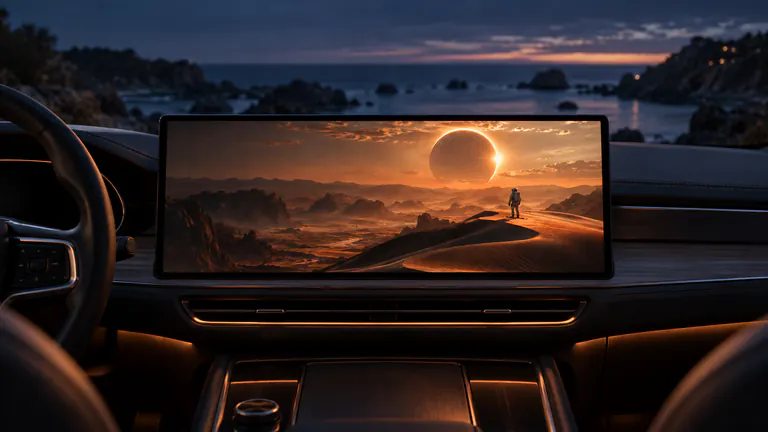
FIND YOUR WAY TO THE BIGGER SCREEN
AirPlay vs CarPlay. The right route to your next watch.
CarPlay is the iPhone experience built into compatible car displays. AirPlay sends media or mirrors a screen to a compatible receiver. In Dashow, the video library is the route for your own content, while Cast to Car starts a system screen-sharing session. The vehicle, output route and source content determine what can appear on the display.
- 01
CarPlay and AirPlay describe different parts of the experience.
- 02
Choose library playback for your movies, screen sharing for another app.
- 03
A receiver’s video support matters alongside your iPhone.
How it works
Your quick start
- 01
Start with the content
Choose a local video, connected library, live channel or another app.
- 02
Match it to a route
Use the Dashow library for media, or Cast to Car for permitted screen sharing.
- 03
Check the receiving display
Connect while parked and select the video-capable display your setup provides.
CarPlay gives the car its iPhone experience.
CarPlay brings supported iPhone functions into a vehicle interface. Seeing maps, music and messages on that screen tells you the CarPlay connection is working. It does not, by itself, tell you which video presentation methods the vehicle supports. Apple describes video-in-car capabilities separately, and the receiving vehicle has a role in making them available.
That distinction is useful when choosing an app. Start with the screen you already have: its model, software and documented video capability. A broad promise about CarPlay on the internet is less useful than knowing whether your actual receiver can show the route you want to use.
AirPlay sends content to a receiving screen.
AirPlay can send a selected video to a compatible receiver or mirror a device’s screen. Sending a movie lets the media occupy the selected display while playback controls remain on the phone. Mirroring reproduces what appears on the phone, including an app’s interface and the proportions of its video.
These are related experiences, but not interchangeable promises. A source app can allow one kind of output and restrict another. A receiver can support audio without accepting the video route you expected. When testing, choose a short personal video you know plays correctly before changing several settings or switching between streaming services.
Choose between your library and Cast to Car.
For a movie saved in Files or Photos, import it into Dashow. A server library, network folder, playlist or direct video link can also provide content for the player. This route keeps your chosen media together and gives local videos a remembered playback position. It suits the film or episode you already planned to watch.
Cast to Car starts from a different need: something worth sharing is already inside another app. Choose the display, start the system broadcast, then return to that app. Your iPhone remains the controller. Prepare the content first so the shared screen opens on the part you actually wanted to show.
Make the first test easy to understand.
Park, establish the receiver’s documented connection and open one familiar local video on the phone. Select the compatible display and check both picture and sound. If that works, move on to your server, live channel or other app. You have now separated the screen connection from the source you want to use.
If the display is missing, investigate receiver support and discovery. If the display appears but one app gives a black image, compare it with your personal video. Different results point to different next steps. This small sequence gives you a clearer answer than treating every missing picture as the same CarPlay problem.
Three parts of a bigger-screen watch
| Part | Its job | What to check |
|---|---|---|
| CarPlay | The vehicle’s supported iPhone interface | Vehicle features and software |
| AirPlay video | Send supported media to a receiver | Video-capable receiving route |
| Screen sharing | Show permitted content from the phone | Capture permissions and selected display |